
Search Website
Remote Desktop for MacOS
Overview
This tutorial demonstrates the installation of Microsoft Remote Desktop on MacOS Catalina (10.15). The process should be similar for other versions of MacOS
This allows you to remotely connect to a Windows computer and access the desktop of that PC.
Audience
This tutorial is geared toward:
- MacOS users comfortable installing software
- Users wishing to establish a Remote Desktop connection to a remote server
Tutorial
- Press F4 to open the Launchpad. Search for
App Storeand open it.
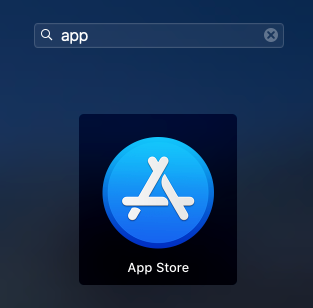
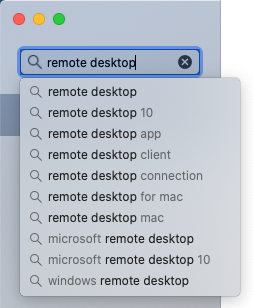
- In the App Store, enter
remote desktopin the search field and press Enter.
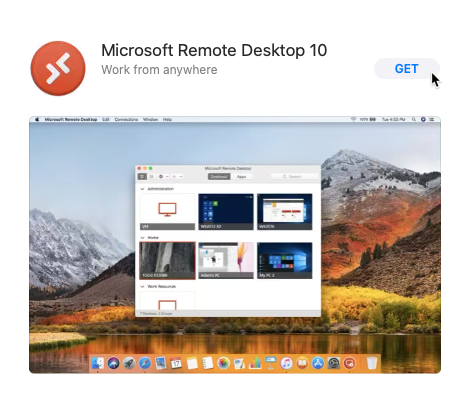
- Click the Get button under Microsoft Remote Desktop 10.
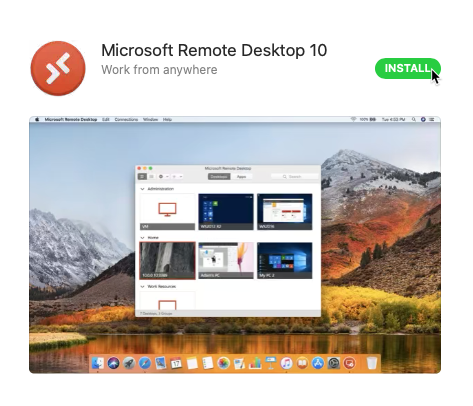
- Click the Install button under Microsoft Remote Desktop 10.
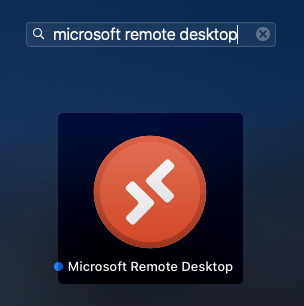
- After the installation completes, press F4 to open the Launchpad. Search for Microsoft Remote Desktop and click the icon to launch the application.
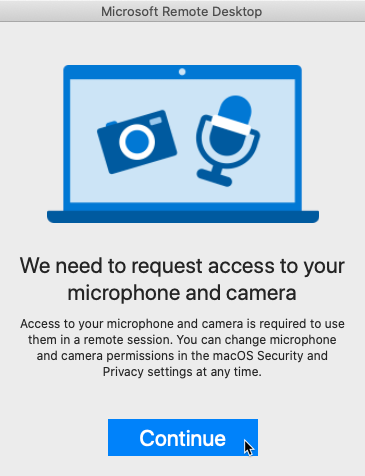
- If you receive a dialog indicating you need to grant access to your microphone and camera, click Continue.
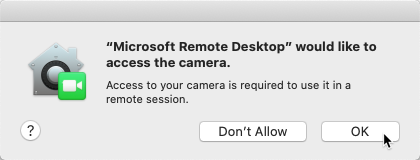
- If you receive a dialog asking for permission to access your camera, click OK if you wish to be able to use your webcam from a remote system.
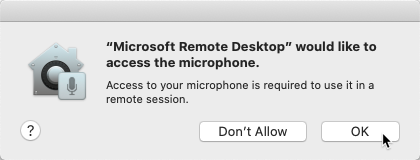
- If you receive a dialog asking for permission to access your microphone, click OK if you wish to be able to use your microphone from a remote system.
You are now ready to establish a Remote Desktop connection to a remote PC or server.